


How to integrate Tessel with Discord
Connect your account, install the bot on the right server, and make a short test recording before your table meets.
- 1 Link your server Authorize the account that manages it
- 2 Install and verify the bot Select the same server in Discord
- 3 Enable the campaign Test /tessel record and /tessel stop
Connect your table’s server
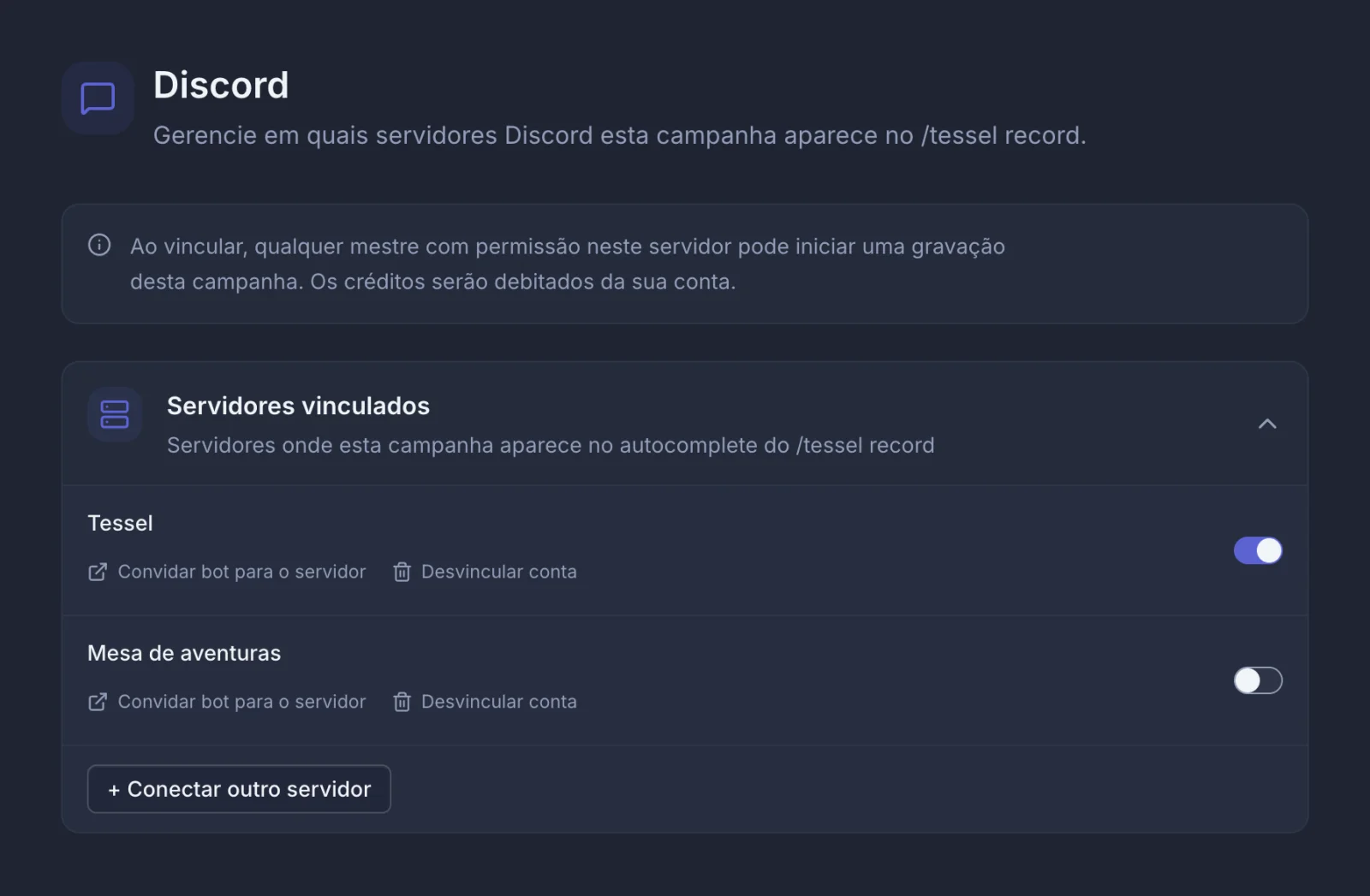
Open Settings → Discord in the campaign. Use a Discord account with permission to manage the server. Connect with Discord and authorize the account. Back in Tessel, choose the server your table uses and link it.
Install the bot and enable the campaign
- Select Invite bot to this server and authorize the same server in Discord.
- Return to Tessel and select Check again to confirm the installation.
- Enable the switch next to the right server under Linked servers. This makes the campaign available to the recording command there.
Make a test recording
Let the group know before recording. Join the voice channel, run /tessel record, and select your campaign. Record for a few seconds, then run /tessel stop to finish and send it. Look for the test entry in the campaign’s Sessions. Recordings use the campaign owner’s credits.
If the server is missing, check which Discord account you authorized and whether it can manage the server. If the server is listed and the campaign is missing from the command, check the bot installation and the campaign switch.
Record a short test on your Discord server and check that it reaches the campaign you selected in Tessel.
Experimente grátisTry for freePrueba gratis